Blog
The Laptopkey.eu blog is a place for people looking for advice and information on laptop keyboard repair. We sell individual keys, hinges, and cups, allowing for quick and economical repairs without the need to replace the entire keyboard.


How to Fix Sticky Keys on Laptop: Step-by-Step Guide
Index:
- Introduction
- Causes of Sticky Keys
- Safety & Preparation
- Quick Cleaning: Debris Removal
- Using Rubbing Alcohol
- Removing & Reassembling Keys
- Compressed Air Technique
- When to Replace Keys
Introduction
Sticky keys may feel gummy, repeat characters, or act as if held down. Causes include software settings or grime beneath the key. This guide walks you from surface cleaning to replacement if needed.
Causes of Sticky Keys
Physical contamination: crumbs, spills, and oils accumulate under keycaps. Hold the device face-down over paper and tap gently to see loose debris.
Software: Windows Sticky Keys feature may mimic a held key. Check accessibility settings if multiple keys repeat unexpectedly.
Safety & Preparation
Power off the laptop, unplug all peripherals, and remove any battery if possible. Set a clean, well-lit workspace. Ground yourself to prevent static damage.
Essential tools: cotton buds, rubbing alcohol, soft brush, tweezers/toothpick, compressed air.
Quick Cleaning: Debris Removal
Hold the laptop face-down and tap gently to remove crumbs. Use a soft brush along rows to clear particles outward.
Repeat until keys feel smooth. Test keys after cleaning to see if the problem is resolved.
Using Rubbing Alcohol
Power down and lightly dampen a cotton bud with isopropyl alcohol. Clean around the edges of problem keys, avoiding excess liquid.
Allow the key to dry fully, then test. Repeat if necessary.
Removing & Reassembling Keys
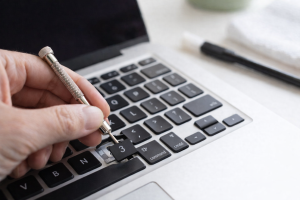
Use a keycap puller or thin flat tool to lift gently. Only remove one or two keys at a time. Photograph the layout for easy reassembly.
Inspect scissor clips and slot for debris, clean if needed, then reinsert the keycap carefully.
Compressed Air Technique
Use short bursts of compressed air around keys to lift dust. Keep the can upright and avoid spraying propellant on the keyboard. Move across the keyboard rather than focusing in one spot.
When to Replace Keys
If the keycap, clip, or scissor mechanism is broken, cleaning may not help. Replacement parts from laptopkey.eu ensure precise fit and normal function.
Check your model, photograph the damaged key, and order exact replacement parts if necessary.